ClariRec for Mac
Screenshot OCR, instant translation, formula to LaTeX. Local by default.
Press ⌥S, select any region, get editable text in milliseconds.
No account required · No middleman server · Core OCR is permanently free

20 free formula recognitions a month · Pro is a one-time purchase for unlimited formulas and remote OCR · Version 2.4.7 · macOS 14+

Formula Recognition: Screenshot to LaTeX, Then Straight into Word (20 free a month)
Stop retyping equations from lecture slides, papers, or textbooks. The on-device GLM-OCR engine turns a screenshot into LaTeX in about 2 seconds, with zero network requests and no API key (20 free recognitions a month on Apple silicon Macs with 16 GB). If a symbol comes out wrong, fix the source right in the result window while the KaTeX preview follows. Then Copy as Word Equation and paste into Word for Mac to get an equation you can keep editing — or copy raw, inline, or display LaTeX for Overleaf and Obsidian, and export .tex, Markdown fragments, or a transparent PNG.
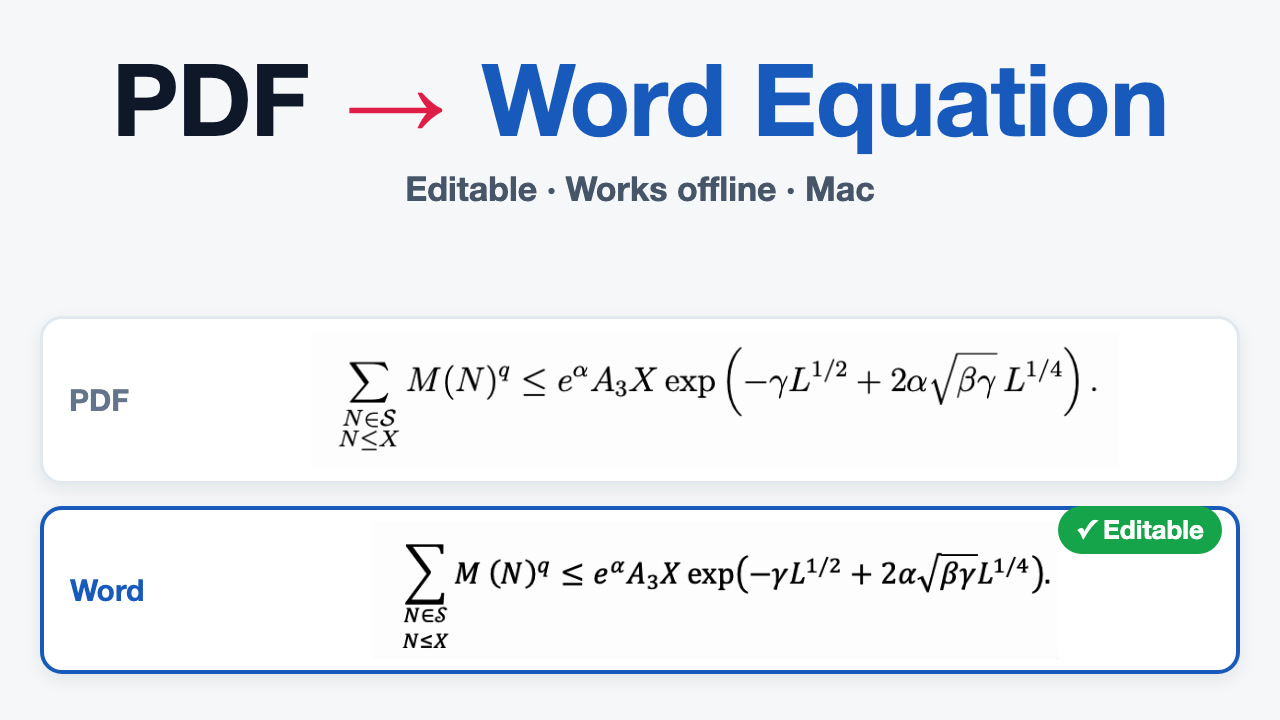

Editing, copying, and exporting never use your monthly recognitions. The on-device engine runs completely offline after download, and Qwen and Custom API cloud engines are also supported (Pro). Guides: Paste a Formula into Word, Screenshot to LaTeX Guide, and On-Device Formula OCR.
Core Features
Fast On-Device OCR
Press ⌥S to capture any screen region, or use ⌥V for clipboard images and file drops. Handled entirely on-device by macOS Vision with zero network traffic.
Formula to LaTeX & Word (20 free a month)
Turn printed equations into LaTeX, fix them in place with a live KaTeX preview, then copy as an editable Word equation or export .tex, Markdown, or a transparent PNG. Runs on-device with GLM-OCR or through a cloud model.
Side-by-Side Translation
Translate recognized text in the same popup. Works with free on-device models (HY-MT2), Apple Intelligence (macOS 26+), macOS System Translation, and custom BYOK AI endpoints.
Code & Technical Text Protection
Intelligently protects URLs, code snippets, file paths, and technical terminology from being mistranslated. Also exports tables cleanly into Markdown.
Mini HUD Non-Intrusive Lookup
Select text in any application and press ⌥T to trigger a compact floating Mini HUD pill. Instant lookup without switching apps or context.
Direct BYOK & Keychain Security
API keys are securely stored only in your local macOS Keychain. Requests route directly to your chosen provider with zero intermediate proxy servers and no telemetry SDKs.
Visual Workflows
Technical Translation: Preserving Code & Links
Translating developer documentation, GitHub READMEs, or terminal logs? ClariRec preserves variables, syntax blocks, and links intact.

Easily customize window width (360–560 pt) and typography scale. Guides: Screenshot Translation and Local Translation Models.
Why ClariRec?
| Comparison | Apple Live Text | Typical Cloud / Subscription OCR | ClariRec |
|---|---|---|---|
| Workflow | Manual cursor selection inside supported viewer apps | Open web browser or heavy SaaS app | Global hotkeys (⌥S / ⌥V) anywhere |
| Privacy & Security | On-device system feature | Uploads all screenshots to third-party servers | macOS Vision on-device by default, zero uploads |
| Formula to LaTeX | Not supported | Expensive monthly/annual subscriptions ($60+/yr) | Offline GLM-OCR, 20 free a month; unlimited + BYOK with one-time Pro ($9.99) |
| Translation & Editing | Basic system popover, non-editable | Multiple context switches | Side-by-side editable text, 11 languages & Mini HUD |
| Pricing Model | Free built-in feature | Recurring subscription fee | Core features permanently free, one-time Pro ($9.99) |
Read the in-depth comparison: ClariRec vs Apple Live Text Workflow Guide →
Coming from another OCR tool? See TextSniper alternative and CleanShot X OCR alternative.
Guides & Documentation
⌥S / ⌥V shortcuts, three display modes, and daily capture
Screenshot to LaTeX
Recognize, fix, then copy as a Word equation or export — 20 free a month
Paste a Formula into Word
Copy as Word Equation, ⌘V, and get an equation you can edit
Screenshot Translation
Side-by-side dual pane, technical text protection, and 11 languages
Local OCR Privacy Boundary
Understand what stays on-device and when network requests occur
PopClip Official Extension
Instant select-to-translate, PopClip Directory listing & Mini HUD
Browse all guides and setup tutorials →
Frequently Asked Questions
Is ClariRec free?
Core System OCR, the local translation model, provider setup and testing, and BYOK translation are all free without requiring an account. On eligible Macs, on-device formula recognition is free 20 times a month. ClariRec Pro is a one-time purchase ($9.99) for unlimited formula recognition, BYOK cloud formula providers and remote OCR execution.
Does it upload my screenshots to the cloud?
Never by default. System OCR, the local translation model, and on-device GLM-OCR formula recognition operate 100% locally on your Mac. When you explicitly choose a BYOK cloud engine, images are sent directly to your configured provider with no ClariRec middleman servers.
Does it work offline without an internet connection?
Yes. Default System OCR, downloaded local translation models (HY-MT2), downloaded on-device formula models (GLM-OCR), and Apple Intelligence run completely offline.
What are the hardware and system requirements?
Basic OCR and translation require macOS 14.0 (Sonoma) or later (Universal Binary for Apple Silicon and Intel). On-device GLM-OCR formula recognition requires an Apple Silicon Mac with at least 16GB of unified memory.
Read more frequently asked questions →
Install Free from the Mac App Store